Streamline Your Workflows with HireHop’s New Email Templates
Administrative tasks can easily become a bottleneck when you’re running a busy rental business. Spending time manually typing out quote follow-ups, copying and pasting logistics details or re-entering data into separate customer emails takes valuable time away from actual operations.
To help streamline this workflow, we have rolled out our new Email Templates functionality.
This update allows you to create standardised email templates infused with dynamic variables. The system automatically populates real-time data based on exactly where you are sending the email from (such as a specific Job or Project page), saving your team time and reducing the risk of manual data entry errors.
Keep reading for a straightforward guide, step-by-step guide on how to configure and deploy them across your system 👇
Step 1: Create & Configure Your Template
Before you can start sending dynamic emails, you need to build your master template in your settings and define its data context.
1. Navigate to Company Settings
Go to Company Settings and click on the Email Templates tab.
2. Add or edit
Click the + New Template button on the left sidebar, or select an existing template to edit.
3. Fill in the details
Complete the initial template fields:
- Name: Give your template a clear, identifiable name (e.g. Job Quote Follow-Up).
- Subject: Set a default subject line (variables can be used here too).
- Context: Select the context where this email will be used. Choosing Jobs, for example, ensures the template knows it needs to pull specific job data fields.
4. Insert dynamic variables
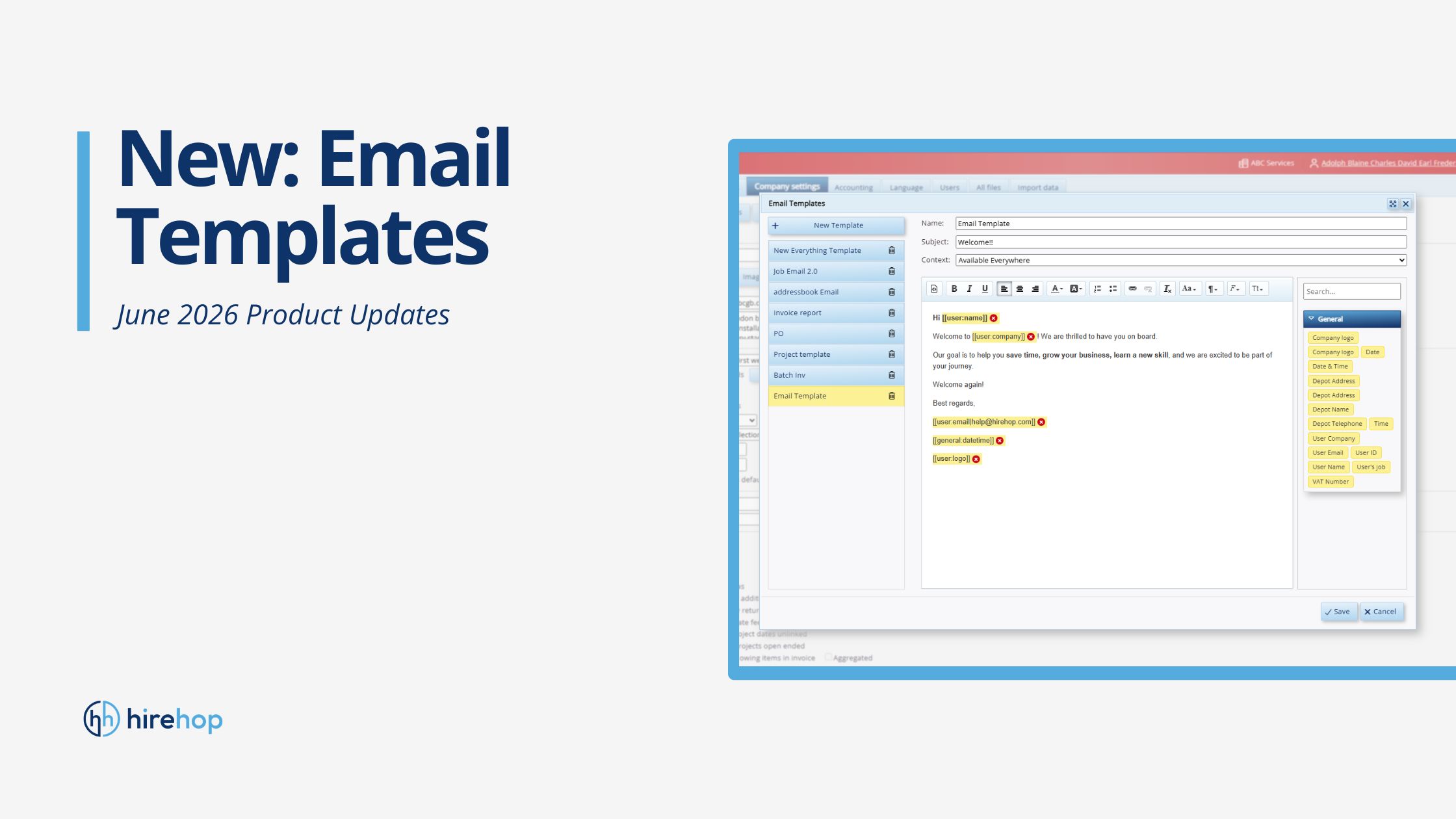
On the right-hand side of the screen, you will find a searchable sidebar of available data categories (such as General or Job). Find the data field you need and insert it into the rich text editor. These variables will appear in your text body as yellow highlighted placeholder tokens, such as [[job.job_name]] or [[user.name]].
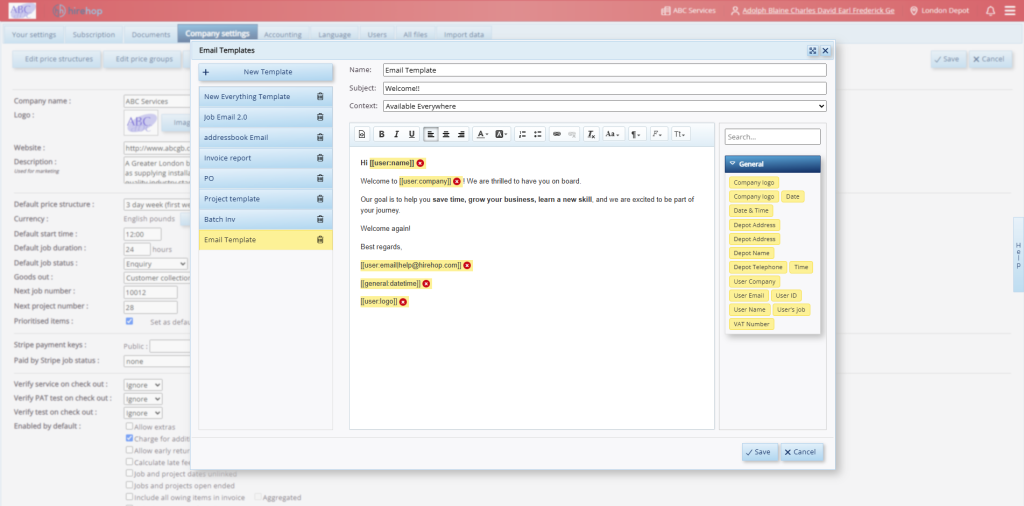
Setting up an email template inside HireHop.
If you double-click on a variable field, you can enter fallback text for that field. In practice, this means that if the information for that field is missing, whatever fallback text you enter here will appear when composing an email using this template.
Once you are happy with the layout, hit Save.
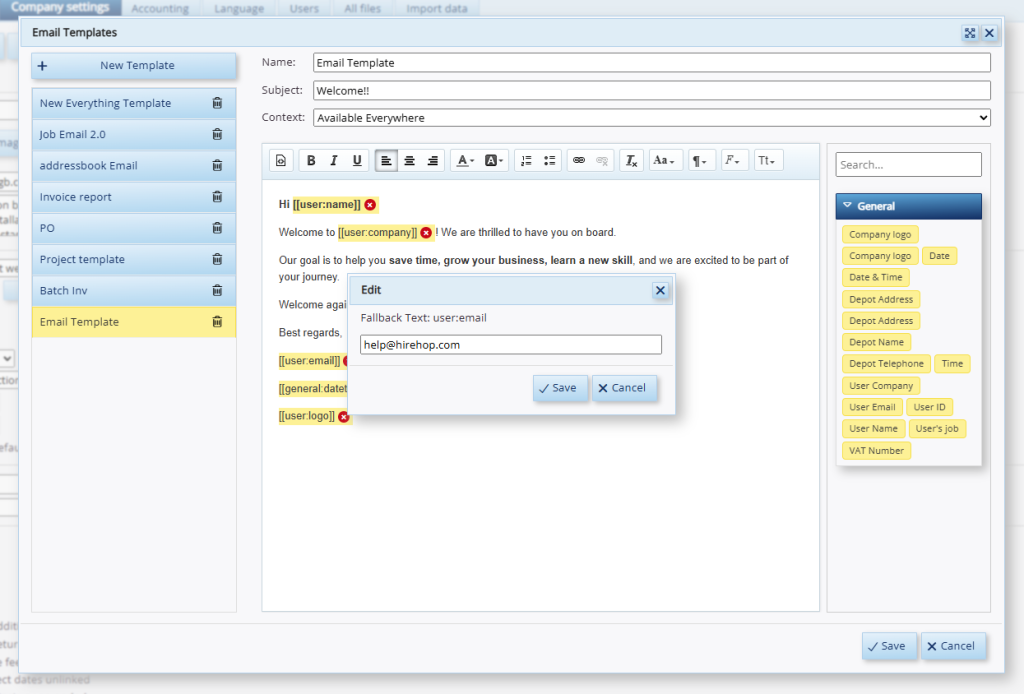
Inserting fallback text into your template.
Step 2: Composing and Sending Your Email
With your template saved, it is ready to look up and insert live data contextually.
1. Find the item you want to email about
Navigate to the specific item you want to email about (for example, if you want to send an email about a specific job, go to that job’s page, like Job number 10010).
2. Open the composer
Click the Email button to open the email composition window.
3. Select your template
In the Template dropdown menu, select the template you created in Step 1. The system will immediately load your template text into the editor, with all your pre-configured fields filled in. This will show you the email exactly as your client will receive it.
4. Review your email and send
If the email looks good and everything is where it should be, simply click Send.
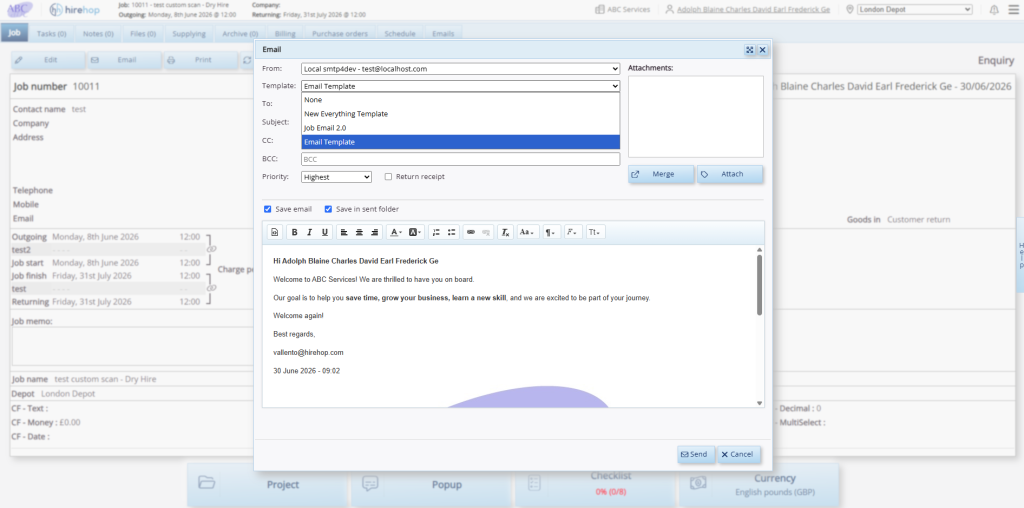
Reviewing the email you composed with your email template.
Why your team will love this feature
- Contextual Awareness: The system pulls the relevant job notes, contact details or financial figures automatically based on the page you are currently working on.
- Consistent Branding: Keeps client communications uniform and professional across every depot or department.
- Workflow Efficiency: Turns repetitive messaging into a quick, two-click process.
Save time with automated email flows
Ready to see how easy it is to manage your hire communications? Our new automated email templates are available right now inside your account dashboard.
If you are new to HireHop, you can experience our advanced email integration for free or contact our support team today to book a personal walkthrough of our workflow features!