
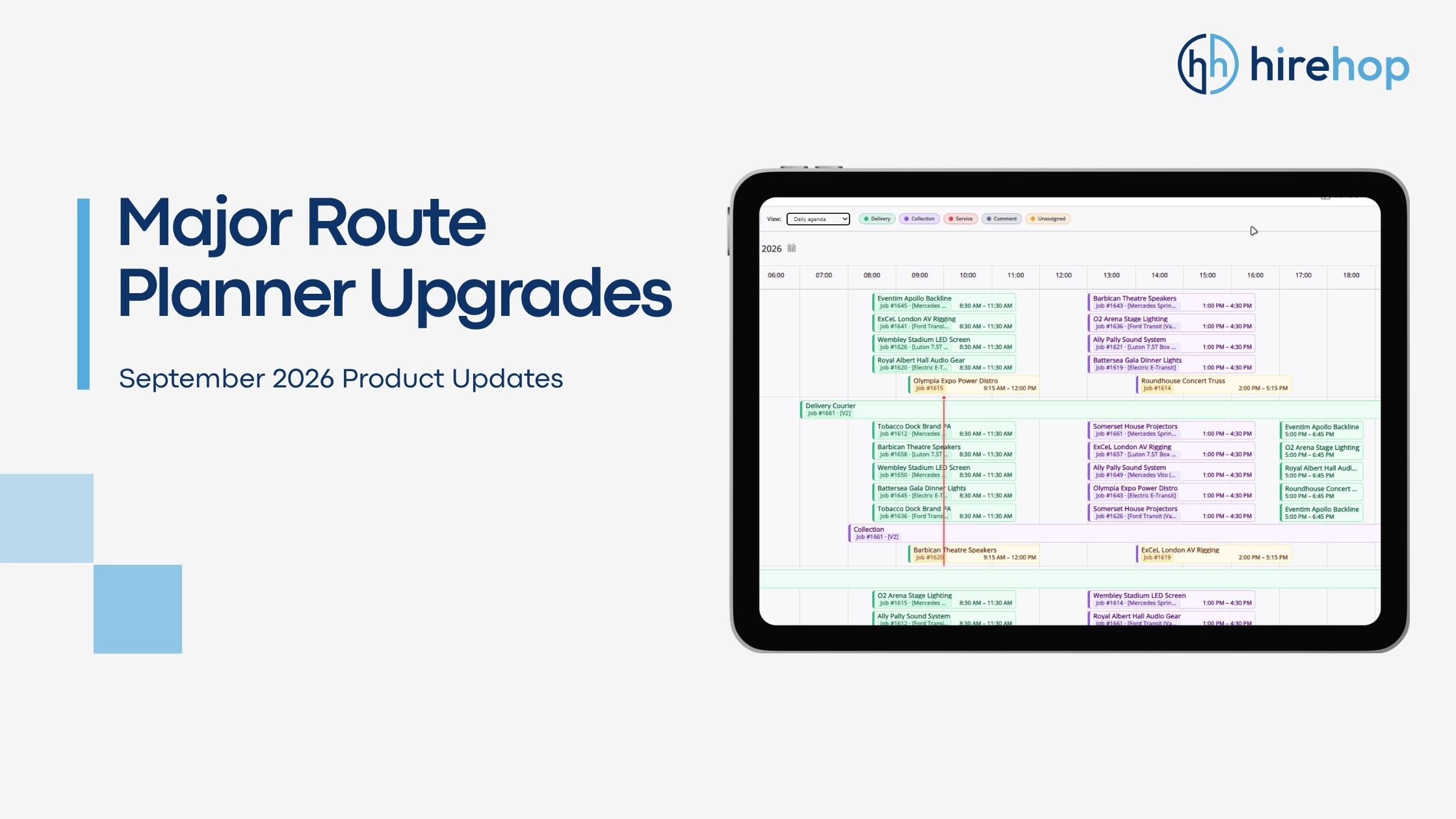
We’ve released a major update to HireHop’s integrated Route Planner, introducing three brand-new interactive views designed to give transport managers complete visual control over fleet scheduling, route planning and driver allocation.
Whether you’re managing two vans, a multi-depot fleet or are using external couriers, you can now seamlessly switch between your traditional Map view and our new visual scheduling timelines.
Accessing the New Views
To access these new features, navigate to Route Planner and click the new Timeline button on the top menu bar.
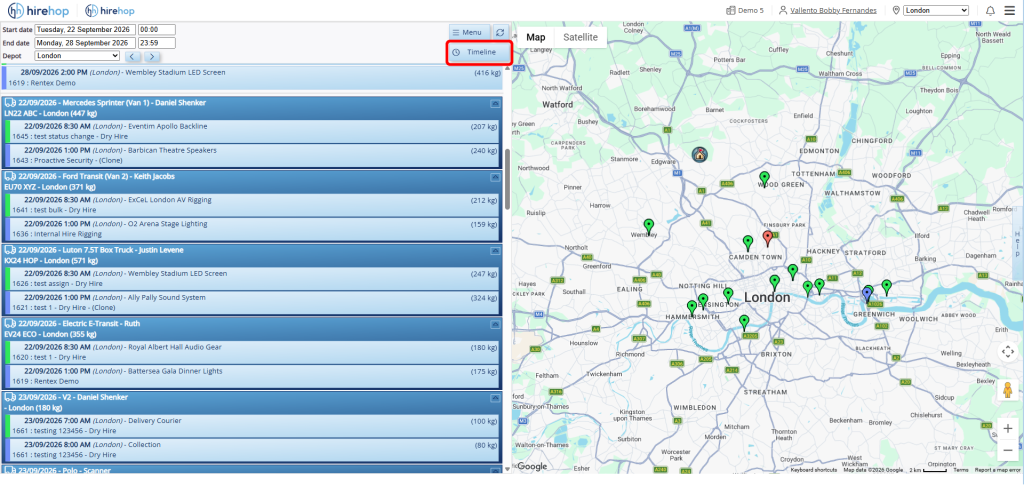
Switch from standard Map view to the new visual scheduling suite using the Timeline button.
3 New Interchangeable Views
All views are interchangeable and update in real time. Assigning a vehicle or changing a stop in one view instantly updates every other view across your system.
Vehicle Allocation View
View your entire fleet down the left side with unassigned transport requests (deliveries, collections, services/other) clearly listed at the top. You can easily assign vehicles, reorder delivery stops and monitor driver allocations.
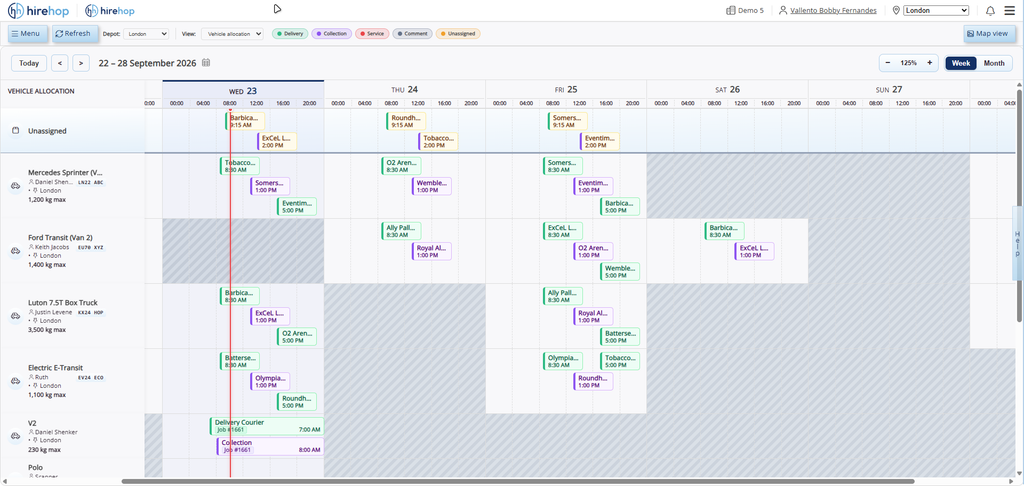
The Vehicle Allocation view puts your fleet on the left with unassigned waypoints queued at the top for quick assignment.
Daily Agenda View
See all transport waypoints laid out chronologically day-by-day in a clean calendar format. Filter by status (Delivery, Collection, Service/Other, Comment, Unassigned) to review daily workload density and spot unallocated runs at a glance
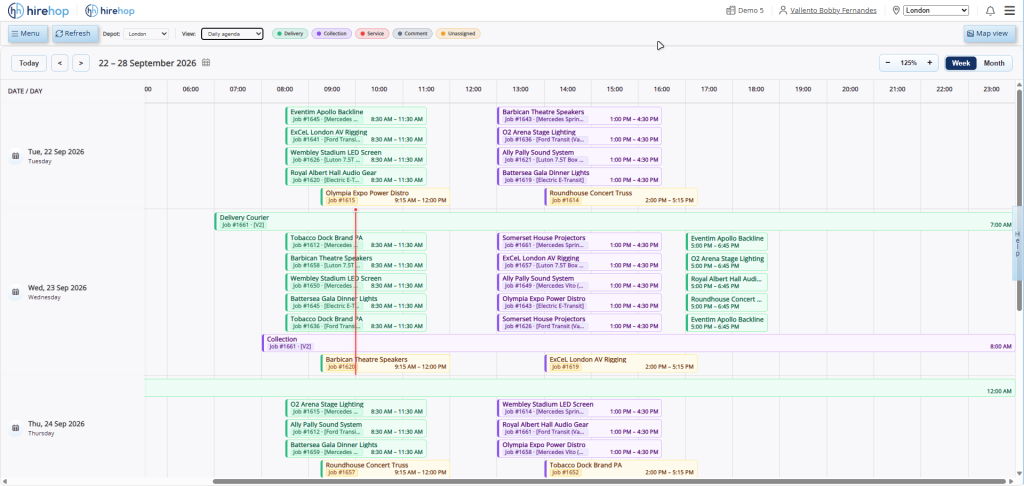
Review daily transport schedules chronologically with colour-coded filters.
Timeline Planner View
A high-level visual timeline spanning across your week or month, helping you anticipate transport surges, manage multi-day jobs, and balance fleet demand well in advance.
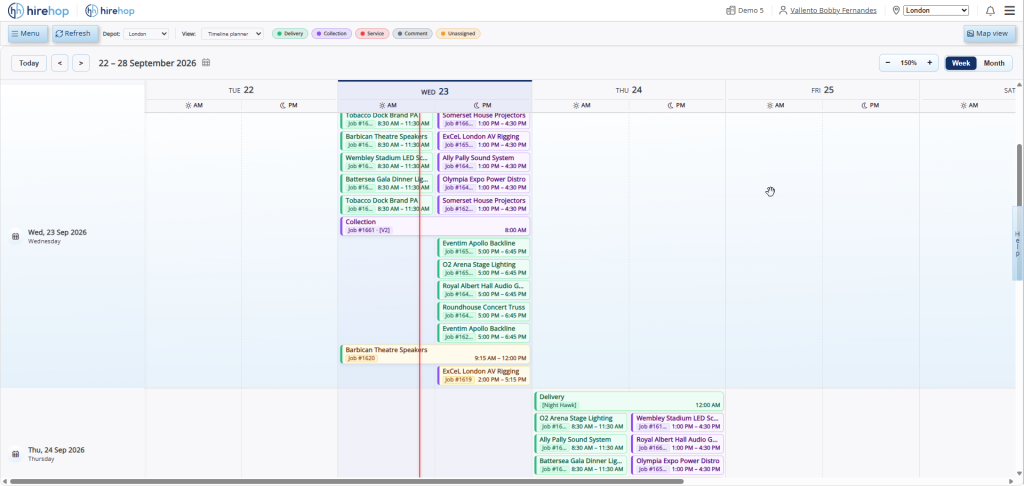
Review daily transport schedules chronologically with colour-coded filters.
How to Assign, Reorder and Inspect Routes
1. Drag-and-Drop Vehicle Allocation
Simply click and drag any unassigned waypoint directly onto a vehicle on the timeline.
2. Detailed Inspection Side Panel
Click on any waypoint to open a side panel displaying complete job details, total weight, delivery or collection address, assigned driver, and live map preview.
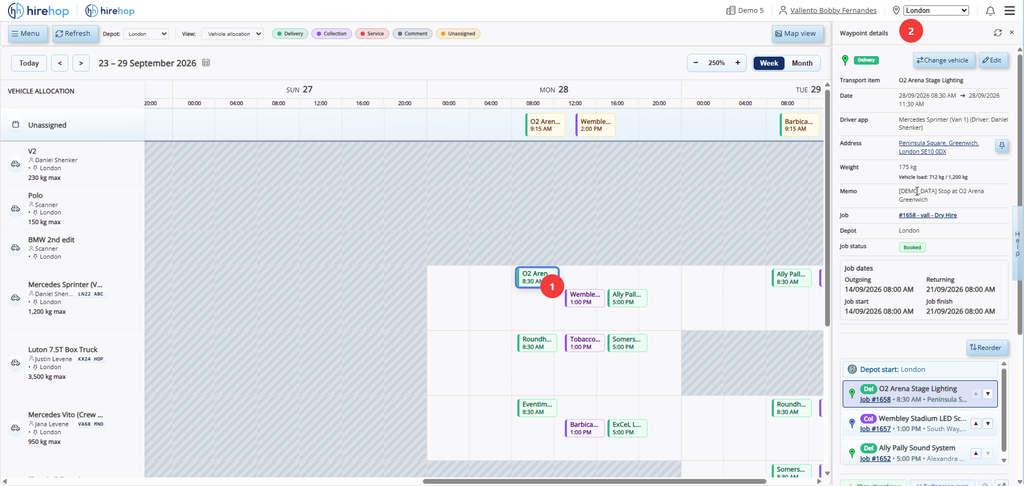
View job details, total weight, driver details, and maps in the pop-out panel.
3. Smart Vehicle Availability & Conflict Warnings
Double-click a waypoint to open the Assign Vehicles Availability window. Check vehicle weight limits (with real-time overweight warnings), view remaining capacity bars, and identify route clashes marked clearly in red.
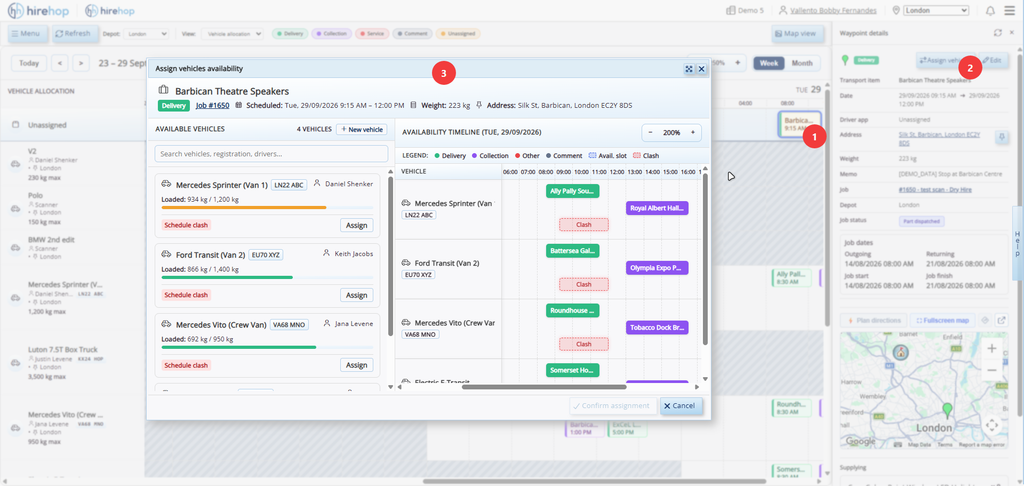
Check real-time vehicle capacity and avoid route clashes with automated availability scheduling.
4. Easy Route Reordering
Need to swap the sequence of delivery stops? Click Reorder on the waypoint panel to drag and adjust the delivery sequence in seconds. You can also reorder routes using drag and drop in the Vehicle Allocation View.
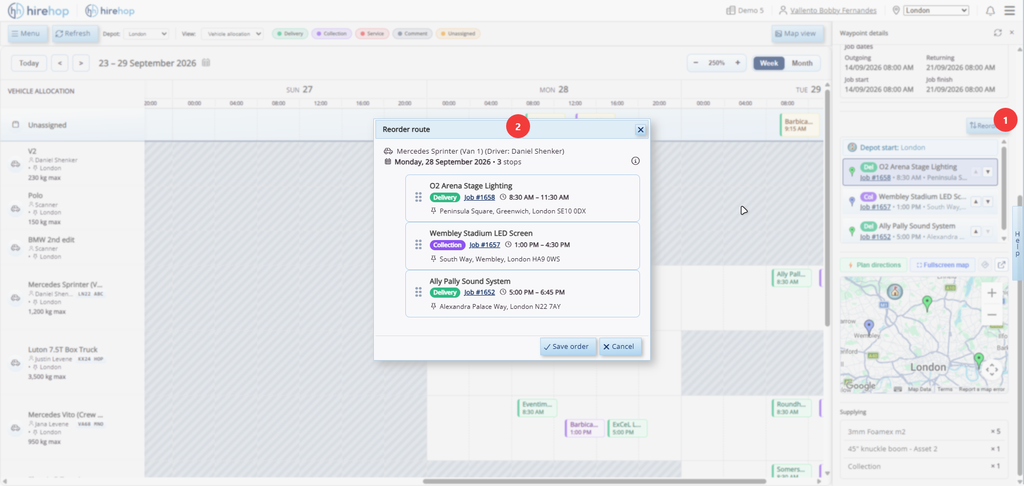
Reorder stop sequences on the fly to optimise delivery routes.
5. Interactive Route Maps & Sat-Nav Directions
Click Plan Directions on any assigned vehicle to generate full route maps, calculated travel times, and instant Google Maps links for your drivers.
- Single Waypoint Geolocation: Preview exact delivery or collection locations on the map by geolocating individual waypoints directly from the panel.
- Route Planner Credits: Geolocating a single waypoint utilises 1 credit, while plotting a full vehicle route utilises 2 credits. Route Planner credits can be topped up anytime in packs of 100 for £4.00.
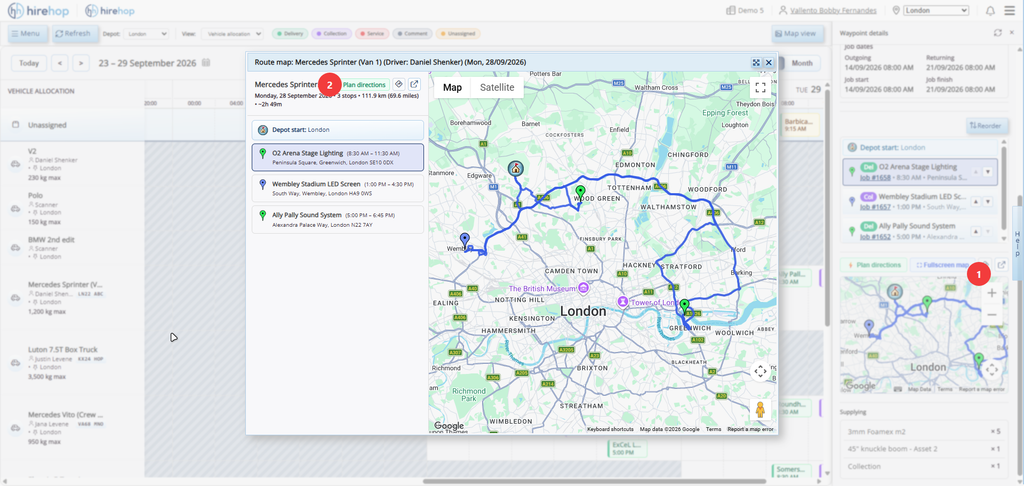
Map out full route directions and send instant sat-nav links to your drivers.
Integrated Driver App Tracking
All assigned routes sync automatically with the HireHop Driver App. Drivers can view their daily runs, open Google Maps sat-nav links, add notes/photos and collect digital signatures for proof of delivery, while transport managers track vehicle locations on the map in real time.
You can also easily assign routes to third-party couriers or temporary drivers by typing their name directly into the new vehicle text field. (Note: External driver names appear on route schedules, while live app syncing remains reserved for assigned HireHop users).