
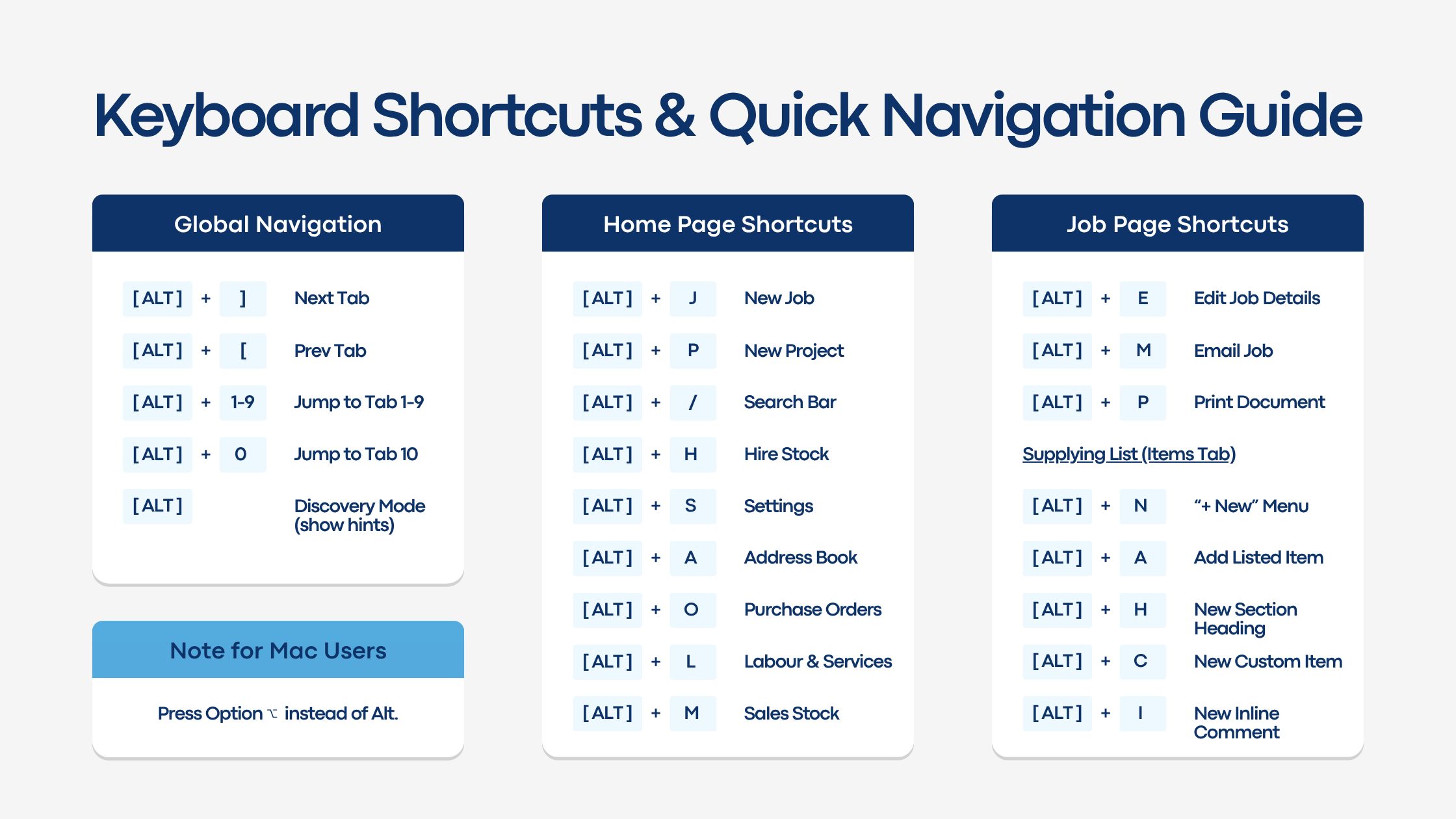
Tired of constantly reaching for your mouse while building quotes, adjusting supplying lists or switching between tabs? You can now navigate HireHop from your keyboard using our new built-in keyboard shortcuts.
Two Ways to Use Shortcuts
1. Tap Alt for Discovery Mode
Simply tap the Alt key once to highlight all available shortcuts directly on your screen. HireHop will underline shortcut letters and number your tabs. Press the corresponding key to act, or tap Esc to cancel.
2. Direct Combos
Hold down Alt and press the shortcut letter (e.g., Alt + J to open a New Job).
(Note for Mac users: Use the Option / Alt ⌥ key.)
1. Global Navigation (Works across all tabbed pages)
| Shortcut | Action | What it does |
|---|---|---|
Alt + ] | Next Tab | Cycles forward to the next tab |
Alt + [ | Previous Tab | Cycles backward to the previous tab |
Alt + 1 to 9 | Jump to Tab (1–9) | Jump directly to Tab 1-9 |
Alt + 0 | Jump to Tab 10 | Jump directly to Tab 10 |
2. Home Page Shortcuts
| Shortcut | Action | What it does |
|---|---|---|
Alt + J | New Job | Opens the New Job creation window |
Alt + P | New Project | Opens the New Project window |
Alt + / | Search Bar | Jump to Search Bar & focus Job Number |
Alt + H | Hire Stock | Opens Hire Stock Management |
Alt + S | Settings | Opens HireHop Settings |
Alt + A | Address Book | Opens Contacts / Address Book |
Alt + O | Purchase Orders / Suppliers | Opens Supplier Management |
Alt + L | Labour | Opens Services & Labour Management |
Alt + M | Sales Stock | Opens Consumables / Sales Stock |
3. Job Page & Supplying List Shortcuts
1. Main Job Actions (When on the Job Tab)
| Shortcut | Action | What it does |
|---|---|---|
Alt + E | Edit Job | Edit Job details |
Alt + M | Email Job | Compose / Email Job |
Alt + P | Print Job | Print Documents |
2. Supplying List (When on the Items Tab)
| Shortcut | Action | What it does |
|---|---|---|
Alt + N | New Menu | Open the “+ New” item dropdown menu |
Alt + A | Add Listed Item | Add a listed hire/sales equipment item |
Alt + H | New Heading | Insert new Section Heading |
Alt + C | New Custom Item | Insert Custom Item |
Alt + I | New Comment | Insert Inline Comment |